
In a world where surveillance is more essential than ever, connecting your Lorex camera to your iPhone can feel like solving a Rubik’s Cube blindfolded. But fear not! With a few simple steps, you’ll be the tech-savvy hero of your household. Imagine checking your camera feed while lounging on the couch or sneaking a peek at your front porch while pretending to work.
Overview of Lorex Cameras
Lorex cameras provide high-quality surveillance solutions for both residential and commercial settings. These devices feature advanced technology, ensuring users benefit from clear video footage. They often include night vision capabilities, allowing for 24/7 monitoring in various lighting conditions. Many models support high-definition recording, delivering crisp images that enhance security.
Wireless connectivity options simplify installations, eliminating the need for complex wiring systems. Mobile applications, such as the Lorex Cloud app, allow users to access live feeds and recorded footage directly from smartphones. This accessibility empowers users to manage their security systems remotely.
Users have access to a range of camera models, including bullet, dome, and PTZ (pan-tilt-zoom) cameras. Each model caters to different security needs, providing flexible options for diverse environments. Lorex cameras also incorporate motion detection features, sending alerts when movement is detected within a defined area.
Integration with smart home systems enhances user experience, enabling seamless control of security setups. Regular firmware updates ensure devices maintain optimal performance and security against potential vulnerabilities. Investing in Lorex cameras enhances overall safety and provides peace of mind for users monitoring their properties.
Requirements for Connection
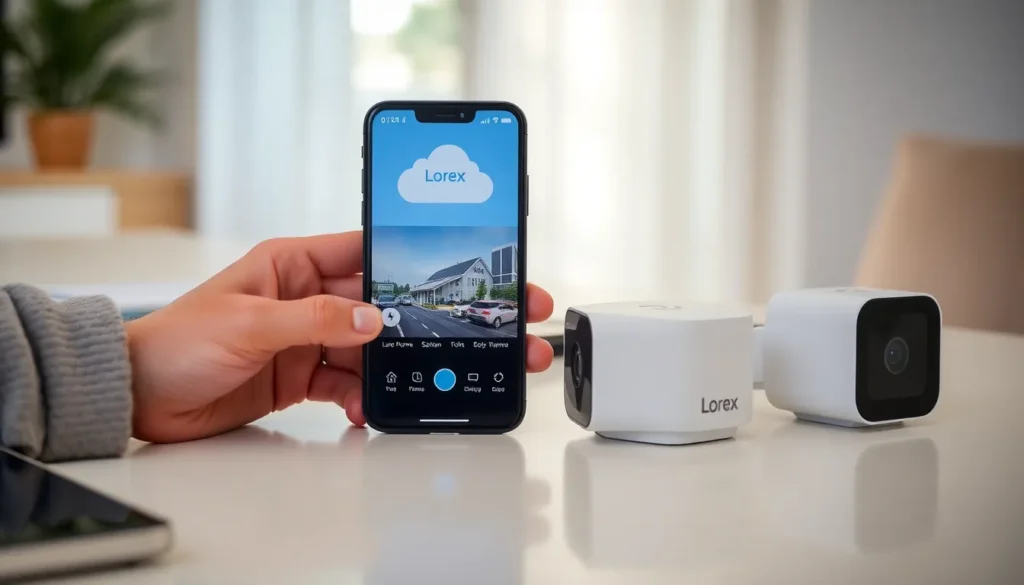
Connecting a Lorex camera to an iPhone requires specific devices and applications to ensure a smooth setup.
Compatible Devices
Some iPhone models support the connection with Lorex cameras. iPhone 7 and newer models provide optimal performance with the Lorex Cloud app. Users should also verify that their cameras are compatible with these iPhone models. Each Lorex camera series may have different requirements, so checking compatibility before proceeding is essential. Wireless cameras connect seamlessly, while wired models might need additional equipment for integration.
Necessary Apps
To access Lorex cameras on an iPhone, the Lorex Cloud app is crucial. This app enables users to view live feeds and manage settings easily. Downloading it from the App Store ensures recent updates and enhanced security features. Users should log in with their account details to link the camera properly. App functionality varies with model, so reviewing app specifications can help in navigating through features effectively. For other functionalities, Lorex offers additional apps that may suit different needs for surveillance and monitoring.
Step-by-Step Guide
Connecting a Lorex camera to an iPhone involves several straightforward steps. Each phase builds on the previous one, leading to efficient surveillance management.
Downloading the Lorex App
Start by downloading the Lorex Cloud app from the App Store. This application is crucial for accessing live feeds from the camera. Ensure the device runs iOS 11 or later for optimal performance. Users can search for “Lorex Cloud” in the App Store. Installation is quick, and once it’s complete, the app icon will appear on the home screen.
Setting Up the Camera
Next, unpack the camera and follow the manufacturer’s setup instructions. Position the camera in the desired location, ensuring it captures the area of interest. Plug the camera into a power source while connecting it to the router with an Ethernet cable for initial setup. Once powered, the camera will start initializing, which may take a few moments.
Connecting to Wi-Fi
After setup, access the app on the iPhone and select the option to add a camera. The app prompts users to connect the camera to their Wi-Fi network. Enter the Wi-Fi credentials accurately when prompted, ensuring the camera can communicate wirelessly. Users can confirm successful connection through the app interface.
Linking Camera to iPhone
The final step is linking the camera to the iPhone through the app. Log in with the existing account or create a new one if necessary. The app guides users to scan a QR code displayed on the camera’s interface. Once scanned, the camera will appear in the app, providing access to live feeds and settings. Ensure everything is working correctly by checking the video feed and adjusting settings as necessary.
Troubleshooting Common Issues
Users may experience various issues while connecting a Lorex camera to an iPhone. Identifying these common problems can streamline the troubleshooting process.
Connection Problems
Connection problems can arise due to several factors. Users should ensure their Wi-Fi network operates properly and that the camera is within range. It’s crucial to verify that the inputted Wi-Fi credentials match those of the network. Users can troubleshoot by restarting both the iPhone and camera to refresh connections. If issues persist, confirming that the camera is updated to the latest firmware may help resolve connectivity issues. Additionally, checking for interference from other devices can improve the signal quality.
App Performance Issues
App performance issues may hinder the overall user experience. Users need to ensure they downloaded the Lorex Cloud app from the App Store, using the latest version to guarantee optimal performance. Regularly closing background applications can free up device resources, enhancing app functionality. Clearing the app cache also promotes smoother operation and faster loading times. Should problems continue, reinstalling the app provides a fresh start, often resolving persistent glitches. Ensuring the iPhone has the latest iOS updates is vital for compatibility and performance.
Connecting a Lorex camera to an iPhone is a straightforward process that enhances security and peace of mind. With the right setup and the Lorex Cloud app, users can easily access live feeds and manage their camera settings from anywhere. By following the outlined steps and troubleshooting tips, anyone can ensure their surveillance system operates smoothly. Regular updates and proper maintenance further optimize performance, making Lorex cameras a reliable choice for both residential and commercial security needs. Embracing this technology empowers users to stay connected and vigilant, safeguarding their properties effectively.

