

Picture this: you’re all set to binge-watch your favorite series, but your iPhone decides it’s on a Wi-Fi strike. Frustrating, right? It’s like planning a beach day only to find out it’s pouring rain. Many iPhone users face this pesky issue, and it can feel like a personal betrayal from your trusty device.
Common Reasons Why iPhone Won’t Connect to WiFi
Various factors can prevent an iPhone from connecting to Wi-Fi. Identifying the underlying issues is crucial for resolving connectivity problems.
Software Issues
Software glitches often disrupt the Wi-Fi connection. Outdated iOS versions can lead to compatibility problems. Restarting the device frequently resolves temporary software bugs. Running network diagnostics via settings can also help identify software-related issues. Resetting network settings restores default configurations and may fix connection failures.
Hardware Problems
Physical damage can impede Wi-Fi functionality. Issues such as a faulty Wi-Fi antenna may prevent stable connections. Dust or moisture can also affect internal components. Inspecting for any signs of damage is necessary, as repairs might require professional assistance. Hardware malfunctions often demand more attention than software glitches.
Network Configuration Errors
Incorrect network configurations can block access to Wi-Fi networks. Manually entering incorrect passwords contributes to connection failures. Network settings like DNS and IP addresses should match the router’s parameters. Verifying the network details can reveal discrepancies in connectivity. Restarting the router can also resolve temporary network issues.
Troubleshooting Steps to Fix the Issue
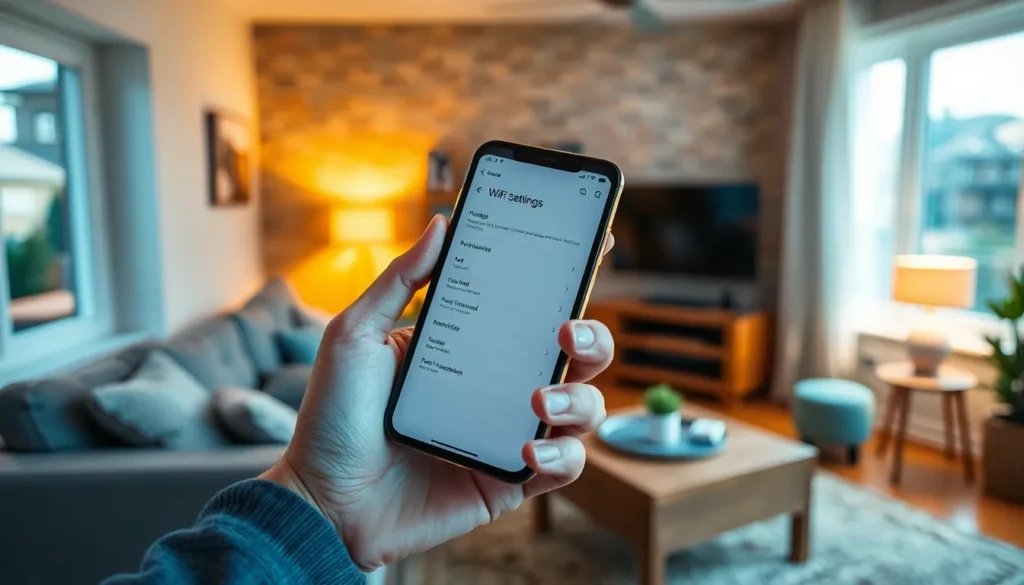
Resolving Wi-Fi connectivity problems on an iPhone often involves a few straightforward steps. Users can swiftly check common solutions to restore connectivity.
Restarting Your iPhone
Restarting the iPhone can resolve minor software glitches. To perform a restart, press and hold the side button and either volume button until the power slider appears. Users should slide it to turn off the device, then wait a few seconds before turning it back on. Sometimes, this simple action clears temporary bugs that interfere with Wi-Fi connections.
Resetting Network Settings
Resetting network settings restores all network configurations. Navigate to Settings, select General, then Reset, followed by Reset Network Settings. This action erases saved Wi-Fi passwords, so users must reconnect to networks afterward. Often, this step resolves issues rooted in previous configurations or connections.
Updating iOS
Updating iOS to the latest version fixes potential connectivity issues. Check for software updates by going to Settings, selecting General, then Software Update. Download and install any available updates. Adopting the latest iOS version improves overall performance and can address known bugs related to Wi-Fi connectivity.
Preventive Measures for Future Connections
Taking proactive steps helps ensure smoother Wi-Fi connectivity for iPhones. Implementing simple measures can greatly reduce the chances of future connectivity problems.
Regularly Update Your Device
Frequent software updates keep the device running smoothly. These updates fix bugs and enhance performance, which can improve Wi-Fi connectivity. Users should enable automatic updates to ensure timely installations. Checking for updates periodically will also address any outstanding issues. Updating to the latest version of iOS can mitigate connectivity problems caused by older software.
Optimize WiFi Settings
Optimizing Wi-Fi settings can enhance connection stability. Choosing the right channel reduces interference from nearby networks. Users must access their router’s settings to change channels if needed. Additionally, configuring the router’s security settings to WPA3 offers better protection and performance. Keeping the router firmware updated ensures compatibility with devices, improving overall connectivity. Ensuring a clear line of sight to the router can also bolster signal strength, minimizing connectivity disruptions.
When to Seek Professional Help
Sometimes, troubleshooting iPhone Wi-Fi issues might not resolve the problem. Users must recognize when it’s time to seek professional assistance.
Contacting Apple Support
Contacting Apple Support provides direct access to knowledgeable technicians. They can diagnose software glitches and determine if updates are needed. During a support call, users should have their device’s serial number on hand, as this speeds up the process. Apple Support uses advanced tools to troubleshoot connectivity issues not easily resolved with basic steps. Additionally, contacting support through the Apple Support app offers a convenient option for quick help.
Visiting a Service Center
Visiting a service center becomes necessary when hardware issues are suspected. Technicians at these centers perform detailed diagnostics on physical components, including the Wi-Fi antenna. They can identify damage and provide professional repairs. Users benefit from hands-on assistance that often resolves ongoing connectivity problems. Before going, scheduling an appointment can reduce wait times, streamlining the repair process significantly.
Resolving Wi-Fi connectivity issues on an iPhone can be a straightforward process with the right approach. By understanding the common causes and applying simple troubleshooting steps users can often restore their connection quickly. Regular updates and optimized settings play a crucial role in preventing future disruptions.
For persistent problems that resist DIY fixes seeking professional help is advisable. Whether it’s a software glitch or a hardware issue expert assistance can ensure the device functions smoothly. With these strategies in mind users can enjoy a more reliable and seamless Wi-Fi experience on their iPhones.

