

Transferring videos from a computer to an iPhone might seem like a task reserved for tech wizards or those with a PhD in digital wizardry. But fear not! With just a few simple steps, anyone can become a video transfer guru. Whether it’s that hilarious cat compilation you can’t wait to show your friends or the latest family vacation footage, getting those videos onto your iPhone is easier than you think.
Understanding the Process
Transferring videos from a computer to an iPhone is essential for anyone wanting to enjoy their media on the go. Understanding this process facilitates easy access to cherished moments.
Importance of Transferring Videos
Transferring videos allows for immediate and convenient viewing on an iPhone. It helps keep treasured family moments available anywhere, enriching personal experiences. Additionally, sharing clips with friends enhances social interactions, making memories more memorable. Streaming content often requires a stable internet connection, which isn’t always available. Therefore, having videos stored locally on an iPhone offers independence from network limitations and ensures quick access during travel or downtime.
Common Scenarios for Transfer
Common scenarios requiring video transfer include creating personal content, such as travel vlogs or event highlights. Users might also want to move family gatherings or holiday celebrations from storage. Professional settings might necessitate transferring video files for work presentations or client showcases. Furthermore, students may transfer educational videos to review lessons on their devices. Each scenario highlights the convenience and necessity of transferring videos, ensuring that valuable content is always within reach.
Methods to Transfer Videos
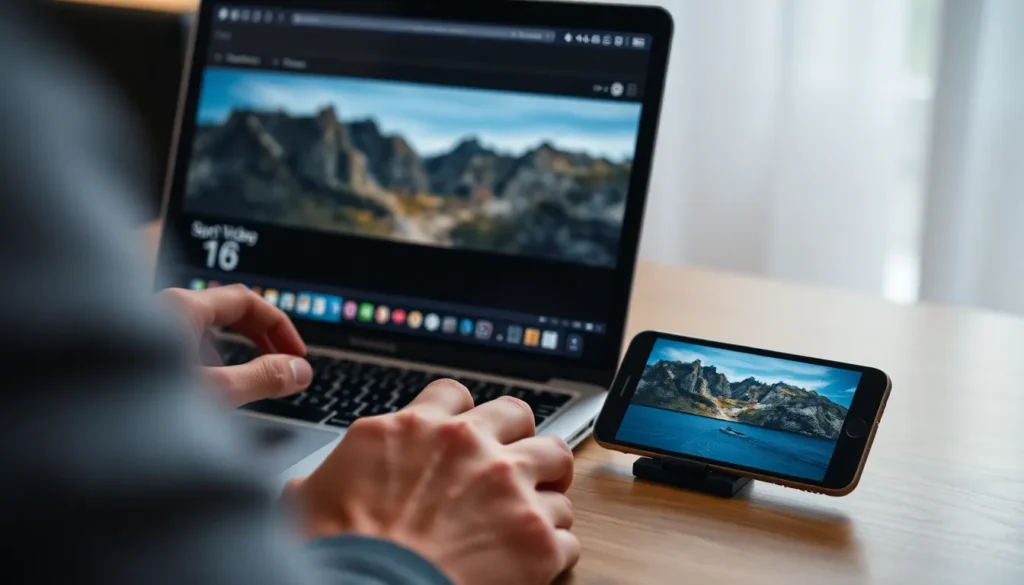
Transferring videos from a computer to an iPhone can happen through several effective methods. Each method caters to different preferences and needs.
Using iTunes
iTunes offers a reliable way to transfer videos. Users can connect their iPhone to a computer via a USB cable. After launching iTunes, selecting the iPhone icon becomes the next step. Users can then choose the “Movies” section under “Settings.” Dragging and dropping videos into this section completes the transfer process. Finally, syncing the iPhone updates its video library with the selected files.
Using iCloud Drive
iCloud Drive allows convenient cloud-based video storage. Users should upload their videos to iCloud Drive from their computer first. Accessing iCloud Drive through the Files app on the iPhone enables seamless access to those videos. Opening the app reveals uploaded content. Simply tapping on the desired video will download it to the device for offline view.
Using Third-Party Software
Third-party software provides alternatives for video transfer. Programs like AnyTrans or Wondershare Dr.Fone streamline the process. Users install the software on their computer and connect the iPhone via USB. Once connected, selecting the transfer option allows users to choose videos. After confirming the selection, transferring begins promptly, simplifying the entire process for users.
Preparing Your Video for Transfer
Preparing videos for transfer enhances the process and ensures successful playback on the iPhone. Factors such as file formats and size limitations play critical roles in this preparation.
File Format Considerations
Selecting the appropriate file format is essential for compatibility with iPhones. MP4 is the most recommended format due to its widespread support and efficient compression. MOV also works well, especially for high-quality video. To verify a video’s format, check the file extension on the computer. Converting videos to MP4 or MOV can be easily done using free software like HandBrake or online converters. When planning a transfer, ensure the chosen format aligns with iPhone standards to avoid playback issues.
Size Limitations
Size restrictions on video files must be considered for a smooth transfer. Typically, iPhone supports files up to 4GB when using iTunes. To manage larger files, consider using iCloud Drive or third-party applications. Reducing video resolution can lower file size without heavily impacting quality. Users often find tools like VLC Media Player handy for this purpose. Keeping video sizes manageable ensures that transfers are efficient and hassle-free.
Troubleshooting Common Issues
Encountering issues during video transfer can happen, but solutions exist for common problems.
Syncing Problems
Syncing problems often arise during the transfer process. Ensuring the iPhone is recognized by the computer is crucial. Disconnect and reconnect the device if syncing doesn’t occur immediately. Moreover, checking for updates on both iTunes and the iPhone can help. Restarting the computer and the iPhone might also resolve temporary glitches. Each of these steps can potentially fix synchronization issues, enabling users to transfer videos seamlessly.
Unsupported Formats
Unsupported formats can prevent videos from playing on an iPhone. Users should confirm that their video files are in a compatible format. MP4 is generally the best choice due to its widespread acceptance. Converting videos using software like HandBrake can aid in achieving compatibility. If a video won’t play, check its codec and resolution settings. Ensuring that formats meet iPhone specifications enhances the ability to view videos without trouble.
Transferring videos from a computer to an iPhone is an accessible process that anyone can master with a little guidance. By utilizing methods like iTunes, iCloud Drive, or third-party software, users can ensure their favorite videos are always just a tap away.
Preparing videos for transfer is crucial for optimal playback, and understanding file formats helps avoid compatibility issues. With the right tools and knowledge, users can enjoy their cherished memories and important content anytime, anywhere.
Embracing these simple steps not only enhances personal enjoyment but also supports sharing experiences with friends and family. Whether for fun or education, having videos readily available on an iPhone makes every moment more enjoyable.

