
Ever captured a moment on your iPhone that turned out to be more of a slow-motion comedy than a cinematic masterpiece? Those dramatic slow-mo videos can be entertaining, but sometimes you just want to relive the action in real time. Luckily, transforming that snail-paced footage into a normal speed video is easier than finding a parking spot at the mall during the holidays.
Understanding Slow Motion on iPhone
Slow motion enhances video by dramatically slowing down motion, creating captivating effects. Many iPhone users appreciate this feature for its ability to highlight details in fast-paced actions.
What Is Slow Motion Video?
Slow motion video captures scenes at a reduced frame rate, resulting in a smooth playback experience that appears stretched out. This technique emphasizes motion, showcasing every detail, from a droplet of water splashing to an athlete’s swift movements. Filmmakers often use slow motion to evoke emotions or create dramatic moments. On iPhones, users can easily record in slow-mo with the camera app, enabling them to enjoy this cinematic quality at their fingertips.
How Slow Motion Works on iPhone
iPhones utilize advanced technology to record slow-motion videos by capturing more frames per second than standard video. This allows users to select playback speeds, typically ranging from 120 to 240 frames per second. After recording, the camera app automatically processes the footage, allowing smooth transitions when viewed in slow motion. Additionally, users can adjust speed during editing, offering flexibility for creative expression. This functionality makes transforming ordinary moments into captivating slow-motion experiences effortless.
How to Change Slow Mo Video to Normal iPhone
Converting slow-motion videos to normal speed on an iPhone can enhance viewing experiences. Two effective methods exist for this process.
Using the Photos App
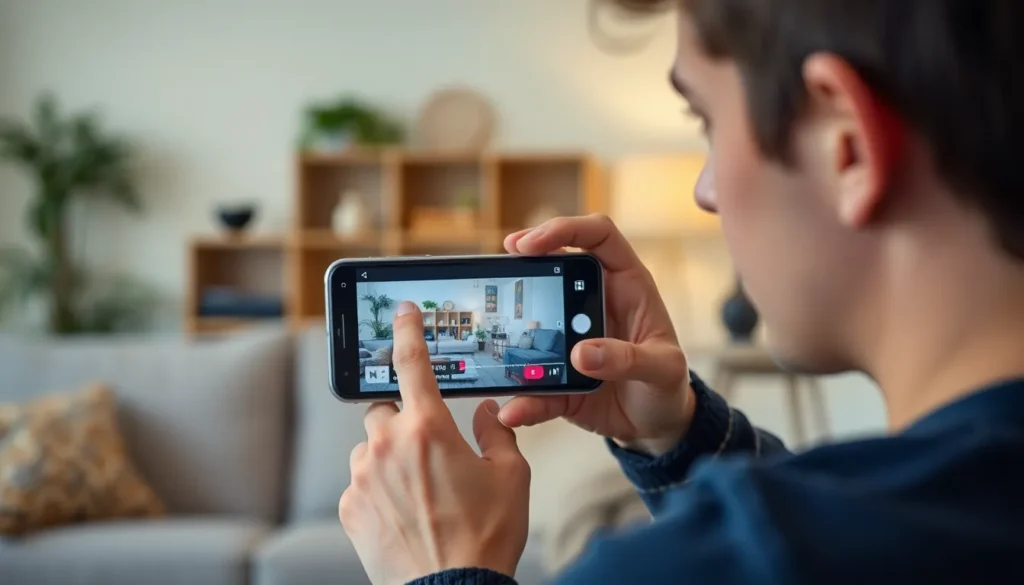
First, locate the slow-motion video in the Photos app. Tap on “Edit” in the top right corner. Users see the playback speed control at the bottom of the screen. Adjust the speed slider toward the center to convert the video to normal speed. Next, preview the changes to ensure satisfaction with the result. Finally, tap “Done” to save the edited video. This method is quick and intuitive, requiring no additional software.
Using Third-Party Apps
Numerous third-party apps offer features for changing slow-motion videos. One popular option is iMovie, which allows users to import the slow-motion clip easily. After selecting the video, tap on the speed control at the bottom. Individuals can slide to normal speed and adjust as needed. Another alternative, Splice, provides a user-friendly interface with similar functionality. These apps often include additional editing tools, enhancing video creativity.
Tips for Editing Videos on iPhone
Editing videos on an iPhone can enhance the overall viewing experience. Here are some essential tips for users to consider.
Enhancing Video Quality
Improving video quality involves several techniques. First, ensure the original video is recorded in good lighting to maintain clarity. Users can increase resolution by utilizing editing apps that support 4K exports. Adjusting brightness, contrast, and saturation can bring out details in the footage. Applying filters provides an artistic touch, but moderation is key to avoid distorting the original look. Cropping unnecessary sections helps focus on the subjects, making the scene more engaging. Utilizing stabilization features within editing apps can reduce shaky camera work for smoother viewing.
Maintaining Video Sound
Sound quality is crucial for editing videos. Users should check audio levels to prevent distortion during playback. Incorporating background music enhances mood but keep the volume balanced with dialogue. Apps often allow voiceovers, offering a way to provide context. Sound effects can also add flair but should complement rather than overpower the original audio. Adjusting the audio settings ensures clarity and consistency throughout the video. Finally, previewing the final edit ensures both video and sound blend seamlessly before sharing or exporting.
Common Issues and Troubleshooting
Converting slow-motion videos on an iPhone can sometimes present challenges. Users frequently encounter specific issues that can impede the process.
Slow Motion Video Not Playing Correctly
Slow-motion videos may fail to play correctly at times. Playback glitches often occur, resulting in choppy or skipped frames. A full storage space can contribute to this problem. Users can address this issue by clearing space on their device. Restarting the iPhone may also resolve temporary software glitches. It’s essential to ensure the device’s software is up to date, as updates often fix known bugs. Checking the video format is another important step; unsupported formats may cause playback issues. Lastly, using a different app for playback can help determine if the problem lies with the video file or the original app.
Problems with the Photos App
Users might experience difficulties with the Photos app during editing. Sudden crashes can occur when adjusting slow-motion settings. Regularly updating the app ensures it functions properly, as updates fix bugs and improve performance. Users also find that heavy workloads can slow down the app. Closing other applications may help speed up performance. Additionally, corrupted videos are another concern; identifying these can prevent further issues. Users should consider exporting and re-importing problem videos to eliminate corruption. Lastly, checking for sufficient storage within the Photos app can help maintain its efficiency.
Transforming slow-motion videos to normal speed on an iPhone is straightforward and can greatly enhance the viewing experience. With the built-in Photos app or user-friendly third-party applications like iMovie and Splice, users have the tools needed to make quick adjustments.
By following the outlined methods and tips, anyone can elevate their video editing skills and produce high-quality content. Addressing common issues ensures a smooth editing process and a polished final product. Embracing these techniques not only saves time but also allows for greater creativity in showcasing memorable moments.

